Last Updated: December 04, 2025 | Tested Version: Nano Banana (web app, late-2025 build)
If you're juggling clients, content calendars, and a hundred tiny design tasks, you don't have time to wrestle with messy backgrounds. I've been there, exporting the same product shot five times just to make it look decent on a simple backdrop.
In this guide, I'll walk you through a focused, repeatable workflow for nano banana background replacement that actually looks professional: clean cutouts, believable lighting, and sharp text on labels or UI screens. We'll cover when to replace the background, how to prompt Nano Banana for instant clean plates, and the essential tools and composition rules that keep everything looking photoreal.
AI tools evolve rapidly. Features described here are accurate as of December 2025.
When to Replace Backgrounds in Nano Banana for Professional Results
Background replacement is tempting to use on every image, but I've learned it works best in a few specific scenarios.
Ideal use cases
Use nano banana background replacement when:
- You need consistent branding
Same product, same angle, different colors or textures behind it for campaigns.
- The original background is cluttered or off-brand
Think messy desk, random cables, or mixed lighting.
- You're batch-producing social assets
One hero object, many formats: Reels covers, thumbnails, ad creatives.
- You must protect privacy or remove sensitive details
Faces, documents, or location clues in the background.
Situations where I don't replace the background
I avoid background replacement when:
-
The original scene adds crucial context (e.g., a café environment that sells the lifestyle).
-
I need pixel-perfect logos or vector graphics on signs or packaging. For that, I keep the photo as-is and finalize layout in tools like Illustrator or Figma.
-
The subject is low-resolution or motion-blurred. Nano Banana can't magically recover detail: a fake-sharp cutout just looks worse.
This is the detail that changes the outcome: background replacement isn't a magic filter: it's a design decision. Once you treat it that way, your results level up fast.
How to Write Nano Banana Prompts for Clean Backgrounds Instantly?
If the original capture is chaos, start by generating a clean background version of your subject inside Nano Banana. Well-structured prompts give you a nearly "studio ready" image from the start.
Prompt structure that works
When I want a clean, photoreal look, I lean on this general pattern:
[main subject], centered, on a [material] background, soft studio lighting, high resolution, sharp focus, realistic reflections, product photography styleExamples tailored for nano banana background replacement:
single ripe banana on a smooth matte pastel-yellow background, soft studio lighting, no shadows on edges, high resolution, product photography stylesmartphone on a plain white background, screen showing minimalist app UI with readable text, soft box lighting, subtle reflection, photorealistic
Negative prompts for clutter-free results
Nano Banana usually respects negative prompts well. I always add something like:
no extra objects, no text in background, no logos, no watermark, no people, no blurParameter suggestions (adjust to your version)
You don't have to match these exactly, but this kind of configuration tends to yield clean plates:
style: photoreal

sharpness: medium-high

lighting: soft studio

background: solid color

aspect_ratio: 4:5 or 1:1 for social
By starting with a prompt that explicitly calls out plain backgrounds and forbids clutter and stray text, your later cutout and replacement work becomes almost trivial.
Essential Clean-Up Tools for Perfect Cutouts
Once you've got your subject on-screen, you still need a precise separation before you swap backgrounds. In Nano Banana (or any similar tool), these are the tools I reach for first.
1. Smart selection / subject detect
Most modern interfaces include a Select Subject or Magic Cutout option.
-
Click Select Subject to auto-detect the main object.
-
Use Add to selection / Subtract from selection to refine edges, especially around hair, cables, or leaf edges.
Test your edges against a solid black or white temporary background. It's the easiest way to see halos and missed pixels.
2. Edge refinement and feather
Look for controls like:
-
Feather (0.5–1.5 px for web images)
-
Smooth (to remove jagged edges)
-
Contrast / Shift edge (to pull the cutout slightly inward and kill halos)
I usually:
-
Slightly decrease the edge radius so the selection sits just inside the object.
-
Apply a tiny feather to keep it from looking sticker-like.
3. Brush and eraser fine-tuning
For problem areas:
-
Use a soft brush at low opacity to paint back any missing pixels.
-
Use a hard eraser to remove visible background seams around corners.
It's tedious for the first few images, but once you learn how Nano Banana's edge tools behave, it becomes a quick muscle-memory routine.
Composition Rules to Enhance Nano Banana Background Replacements
Even a perfect cutout can look fake if the composition is off. Background replacement isn't just technical: it's a visual design decision.
Match perspective and horizon
Always ask: Where is the camera in this shot?
-
If your subject is shot from above, your new background should show more floor than sky.
-
If it's shot at eye level, keep the horizon line behind the subject's middle.
In Nano Banana, describe perspective clearly when you generate backgrounds:
minimal modern kitchen interior, eye-level view, soft natural window light, shallow depth of field, neutral colors, no people
Respect light direction and intensity
Check which side of your subject is brighter.
-
If light hits from the left, prompt your background with "light coming from the left".
-
For moody product shots, mention "single soft box from the right, dark background".
Inconsistent lighting is the fastest way to ruin realism.
Keep the focus hierarchy clear
If you're designing for ads or thumbnails:
-
Keep the busy detail behind and around the subject subtly blurred.
-
Use backgrounds with large shapes and gradients instead of small repeating textures.
For text-heavy designs (labels, UI screens), avoid high-contrast patterns behind critical text. You want the subject and its on-object text to sit on a visually calm backdrop.
Step-by-Step Before/After Workflow for Flawless Background Editing
Here's the workflow I use when I need fast, repeatable nano banana background replacement that still looks high end.
1. Define the problem
-
Identify why the current background fails: clutter, wrong color, bad lighting, or privacy.
-
Decide whether you're going for plain studio or a believable environment.
2. Prepare a clean base image
-
In Nano Banana Pro, generate or import your subject.
-
If generating, use a prompt like:
[subject] on a plain light-grey background, soft studio lighting, no extra objects, high resolution, photorealistic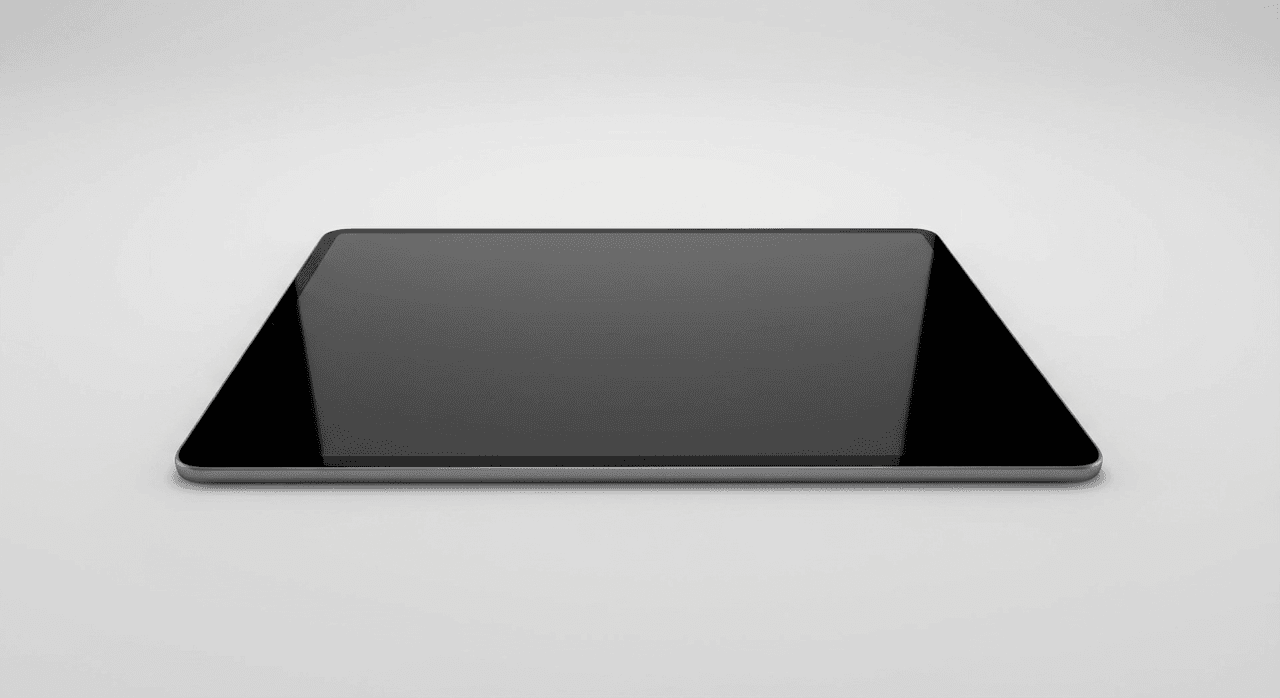
3. Create the cutout
-
Use Select Subject (or equivalent) to isolate the main object.
-
Refine edges with:
-
Feather: ~1 px
-
Smooth: low
-
Shift edge: slightly negative to avoid halos
-
Manually correct edges with the brush/eraser tools.
4. Generate the new background
- In a new layer or canvas, generate the replacement:
soft gradient background in brand colors, subtle vignette, no texture, no objects, no text, no noise, studio style
or, for environmental scenes:
modern office interior, shallow depth of field, clean and minimal, neutral colors, light from the left, no visible people, no text

5. Composite and match
-
Place the cutout over the new background.
-
Adjust scale so the subject feels grounded and not toy-sized.
-
Add a soft shadow under the subject that matches the primary light direction.
-
Nudge color balance and contrast of the subject so it shares the same mood as the background.
6. Final checks for text and detail
If there's any text on your subject (labels, UI screens, packaging):
-
Zoom in to 100–200% to confirm it's legible and not warped.
-
Avoid extra sharpening that creates ringing around letters.
If text is crucial, I sometimes overlay real vector text afterward in a design tool and keep the AI image as the supporting base.
Where this workflow fails (and what to do instead)
Nano Banana background replacement is not ideal when:
-
You need print-ready, vector-perfect logos or signage. Use Illustrator or Figma for those.
-
The original subject is extremely low-res. Start from a better source image.
-
You require strict brand color management for print: AI tends to drift from Pantone-accurate colors. Calibrate colors later in Photoshop or similar.
Ethical considerations for AI-based background replacement
As I've leaned more on AI tools, I've had to build a simple ethical checklist into my workflow:
- Transparency
If AI has significantly altered an image (for example, replacing the entire environment), I label it as AI-assisted or composite in captions or credits. This matters for audience trust and for editorial contexts.
- Bias and representation
When generating environments with people or cultural elements, AI models can reinforce stereotypes. I review images for representation issues and, when needed, re-prompt explicitly for diversity and neutral depictions. If a background implies a real place or group, I avoid using it in misleading ways.
- Copyright and ownership (2025 reality)
I treat AI outputs as derivative design assets, not "stock photos I fully own by default." I avoid using AI-generated imitations of recognizable brands, artworks, or celebrity likenesses. For commercial projects, I check Nano Banana's latest terms and, when in doubt, I keep AI-generated backgrounds more generic and rely on my own or licensed photos for anything that might be sensitive.
For more insights on Google's AI image generation capabilities and how they compare to other tools, you can explore Google's official blog on Nano Banana Pro or read about Nano Banana 2 improvements.
Frequently Asked Questions
What is nano banana background replacement and when should I use it?
Nano Banana background replacement is a workflow for cutting out a subject and placing it on a cleaner or on-brand backdrop using the Nano Banana web app. Use it for consistent branding, cluttered or off-brand scenes, batch social assets, and when you need to protect privacy or remove sensitive details.
How do I write effective prompts in Nano Banana for clean background replacement?
Start with a clear structure: “[subject], centered, on a [material] background, soft studio lighting, high resolution, sharp focus, realistic reflections, product photography style.” Add negative prompts like “no extra objects, no text, no logos, no watermark, no people, no blur” to keep backgrounds clean and easy to replace.
What’s the best workflow for professional nano banana background replacement results?
Define why the background fails, then prepare a clean base image in Nano Banana or import your subject. Use Select Subject plus edge refinement (feather, smooth, shift edge) for a precise cutout, generate a matching new background, composite the layers, add realistic shadows, and finish with color and text legibility checks.
How can I make AI background replacements look more realistic and less fake?
Match perspective, horizon line, and light direction between subject and background. Keep busy detail behind the subject subtly blurred, and favor large shapes or gradients over noisy textures. Adjust scale, color balance, and contrast so the subject feels grounded and shares the same lighting mood as the new background.
Is nano banana background replacement suitable for print or brand-critical projects?
Use nano banana background replacement mainly for digital and concept visuals. For print-ready logos, precise brand colors, or vector-perfect signage, rely on tools like Illustrator, Figma, or Photoshop. AI can drift from Pantone-accurate colors and struggle with razor-sharp text, so finalize critical brand elements in traditional design software.