If you're drowning in product shots, inconsistent lighting, and designs that never quite match your brand, Seedream 4.5 can feel like a lifeline. By the end of this guide, you'll have a clear, repeatable workflow for using Seedream 4.5 to create photoreal e‑commerce visuals, swap backgrounds, build lifestyle scenes, and generate product variants at scale, without sacrificing text accuracy.
AI tools evolve rapidly. Features described here are accurate as of December 2025.
I'll walk you through how I set up products, iterate backgrounds, and build a full end‑to‑end pipeline that actually fits a busy solo creator or small team schedule.
How to Set Up Your Product in Seedream 4.5 for E-commerce Success
The first mistake I see with Seedream 4.5 for e‑commerce is treating it like a magic button. For consistent, high‑conversion images, the setup matters more than the prompt.
Step 1: Start from a clean base image
You'll get the best results if you begin with a solid reference of your product.
Recommended capture:
-
Neutral lighting (soft, diffused, no harsh shadows)
-
Plain background (white, light gray, or solid color)
-
High resolution (at least 1500–2000 px on the long side)
Upload this as your Reference Image in Seedream 4.5 (Fal.ai or BytePlus interface):
-
Click Upload → Reference / Init Image
-
Set Image Strength (or equivalent control) between 0.45–0.65 so the model respects product shape but allows style changes.
Example parameter block:
{

"image_strength": 0.55,

"resolution": "1024x1024",

"guidance_scale": 7.0

}
Step 2: Write a conversion-focused base prompt
Describe your product the way you'd want it to appear on a category page.
Example prompt:
"Photoreal studio shot of a matte black wireless earbud case, centered, even soft lighting, sharp focus on logo, clean white background, e‑commerce product photo, subtle shadow under product"
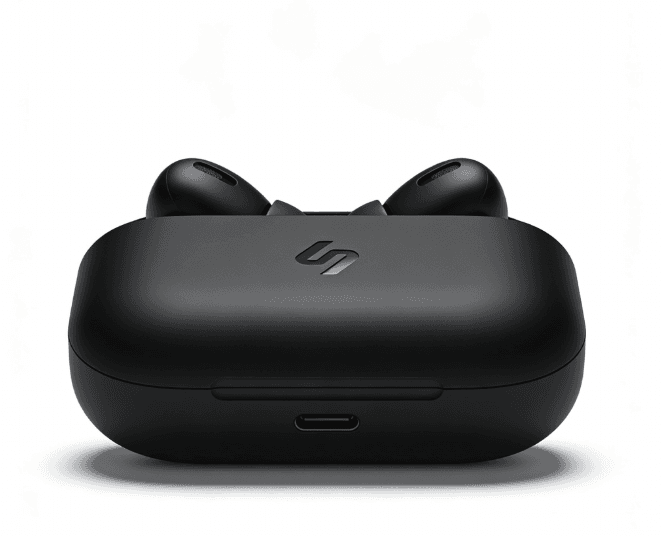
Guidelines I use:
-
Lead with the object and key attributes: material, color, finish.
-
Mention lighting style (soft, diffused, studio, natural window light).
-
Add use case context only if it's still clearly a product shot.
-
Avoid vague adjectives like stunning or beautiful, they add noise.
This is the detail that changes the outcome: being very literal about surfaces, reflections, and shadows gives Seedream 4.5 a clear visual target.
Step 3: Lock in your aspect ratios
E‑commerce platforms use different crops:
-
1:1 – marketplaces, grid views.
-
4:5 or 3:4 – Instagram shop, mobile‑first catalog.
-
16:9 – hero banners and ads.
Run one clean render for each ratio and save these parameter presets:
{
"aspect_ratio": "1:1",
"seed": 12345,
"num_inference_steps": 28
}
Once I have "hero" images dialed in, everything else (backgrounds, lifestyle scenes, variants) branches off these presets for consistency.
Helpful references:
Background Swap Techniques for High-Conversion E-commerce Images
Background swaps are where Seedream 4.5 really shines for e‑commerce. Done right, they look like a real reshoot: done wrong, they scream AI.
Step 1: Preserve product geometry
Keep your original product pose and edge definition by:
-
Reusing the same Reference Image
-
Lowering image_strength only slightly (0.45–0.55)
-
Increasing guidance_scale for prompt control
Example:
{
"image_strength": 0.5,
"guidance_scale": 8.0
}
Step 2: Be explicit about "background only"
I add a line like:
"Same product shape and perspective, change background only, product edges clean, no distortion"
Then define the background style:
-
For marketplaces: "pure white seamless background, soft studio shadow"
-
For premium brands: "light concrete texture, soft vignette, subtle reflection"
-
For colorful shops: "gradient pastel background, smooth, no patterns"
Step 3: Test 3–5 controlled variations
Instead of spamming 50 random renders, I:
-
Fix the seed and only tweak the background description
-
Or keep the prompt fixed and cycle 3–5 different seeds
{
"seed": 101,
"batch_size": 4
}
I then compare:
-
Legibility of the product silhouette
-
Contrast for mobile (squint test at thumbnail size)
-
Compression tolerance for marketplaces (no noisy textures)
Creating Realistic Lifestyle Scenes with Seedream 4.5 for Online Stores
Lifestyle scenes drive clicks and AOV, but they're also where AI can drift into uncanny territory. I treat Seedream 4.5 lifestyle images as a separate but related workflow.
Step 1: Shift from "object-only" to "scene-first" prompts
For example, for a ceramic mug:
"Cozy morning kitchen scene, ceramic speckled mug on wooden table near a sunlit window, soft natural light, steam rising, shallow depth of field, realistic hands absent, e‑commerce lifestyle photo"
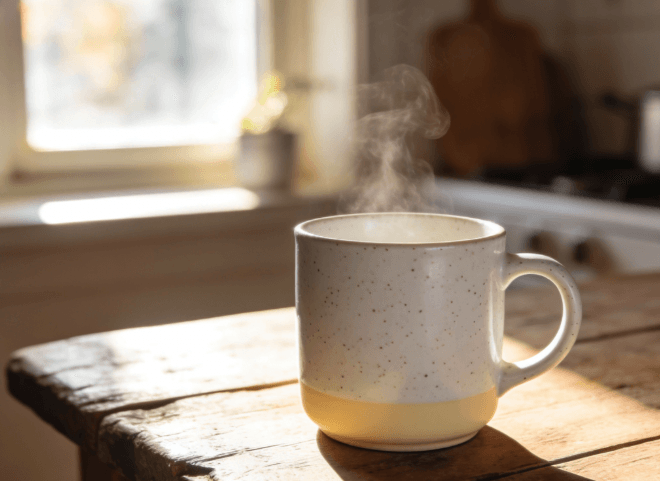
Key choices:
-
Name the environment (kitchen, gym, office desk).
-
Declare what you don't want: "no extra logos, no second mug, no people".
-
Call out depth of field for realism: "shallow depth of field, background softly blurred".
Step 2: Maintain brand and product fidelity
To keep the mug identical to the catalog shot, I:
-
Reuse the original product image as Reference
-
Increase image_strength slightly (0.6–0.7) if the model keeps changing the shape
-
Add brand details into the prompt: "same logo placement and color as reference"
{
"image_strength": 0.65,
"guidance_scale": 7.5
}
If text or logos get fuzzy, I generate a clean product-only render, then composite it over the AI background in a design tool. It's an extra step, but it keeps legal and brand teams happy.
Step 3: Build a reusable "scene library"
I keep a small library of prompts for recurring themes:
-
"Desk setup" (for tech, stationery)
-
"Bathroom counter" (for skincare, cosmetics)
-
"Gym floor" (for fitness accessories)
Reusing these scene prompts across products creates a visual system, not random one‑offs, which is crucial for brand recognition.
Scaling Up: Batch Variant Generation for Efficient E-commerce Production
Once single images look good, the next bottleneck is volume. Seedream 4.5 can handle batch generation well if you give it a consistent framework.
Step 1: Lock in a master preset
I create one "master config" that matches my platform's needs:
{
"resolution": "1024x1280",
"guidance_scale": 7.0,
"num_inference_steps": 26,
"style": "clean ecommerce product photo"
}
I reuse this for all similar products to keep lighting, contrast, and sharpness consistent.
Step 2: Use structured prompt templates
Instead of writing each prompt from scratch, I structure them:
"Photoreal studio shot of [COLOR] [MATERIAL] [PRODUCT TYPE], [ANGLE], [LIGHTING], clean [BACKGROUND], e‑commerce product photo"
Then I swap:
-
[COLOR]: "matte black", "glossy white"
-
[MATERIAL]: "brushed aluminum", "recycled plastic"
-
[ANGLE]: "three‑quarter view", "top‑down"
You can generate these combinations from a spreadsheet or a simple script, then feed them into the Seedream 4.5 API or batch interface where available.
Step 3: Run small test batches first
Before I queue 200 images, I:
-
Run a batch_size of 4–8 per product
-
Check edge cases (very dark products, reflective surfaces, tiny logos)
-
Adjust guidance or image_strength only if multiple SKUs show the same issue
{
"batch_size": 8,
"seed": 0,
"seed_mode": "random"
}
Counter-intuitively, I found that fewer, more controlled batches often ship faster than uncontrolled giant batches that need heavy manual cleanup.
Mastering the End-to-End Workflow for Seedream 4.5 E-commerce Visuals
At this point, you've got the building blocks: clean product shots, smart background swaps, lifestyle scenes, and scalable variants. The last step is turning this into one smooth pipeline.
My practical end-to-end workflow
- Capture or collect base product photos
- Neutral lighting, clean backgrounds.
- Create hero product renders in Seedream 4.5
- One preset per aspect ratio (1:1, 4:5, 16:9).
- Generate on‑brand background variations
- White, light texture, and one brand color option.
- Produce 1–2 lifestyle scenes per hero
- Reuse a small library of scene prompts.
- Batch variants for colorways and minor SKUs
- Use structured prompt templates and a master preset.
- Manual QA and light retouching
- Fix text, logos, and artifacts where needed.
Ethical considerations for AI e‑commerce imagery
I try to keep three things in mind:
-
Transparency – If a product image is heavily AI‑generated, label it somewhere in your workflow and, where appropriate, on site. Customers don't need a technical essay, but they shouldn't feel deceived.
-
Bias mitigation – Lifestyle scenes with people (or implied users) can reinforce stereotypes. When I prompt Seedream 4.5, I rotate descriptors (age ranges, skin tones, environments) and regularly audit outputs so my catalog doesn't skew toward a single, default look.
-
Copyright & ownership (2025 reality) – Use your own product photos as reference whenever possible. Avoid feeding in competitor imagery or copyrighted lifestyle shots. Check your platform's latest terms to understand rights to generated outputs.
When this pipeline is dialed in, using Seedream 4.5 feels less like an experiment and more like a dependable part of the production line, closer to adding a new lens than learning a whole new craft.

Frequently Asked Questions
What is the best way to set up Seedream 4.5 for e-commerce product photos?
Start with a clean, high-resolution reference image shot in neutral, diffused lighting against a plain background. Upload it as the Reference / Init Image, set image_strength around 0.45–0.65, and use a literal, conversion-focused prompt that clearly describes materials, colors, lighting, and background.
How do I use Seedream 4.5 for e-commerce background swaps without distorting my product?
Reuse the same reference image, keep image_strength in the 0.45–0.55 range, and raise guidance_scale for stronger prompt control. Add a phrase like “change background only, same product shape and perspective” and then vary only the background description while testing a few seeds for consistency.
How can I create realistic lifestyle scenes with Seedream 4.5 for my online store?
Shift to scene-first prompts that name the environment, lighting, and depth of field while explicitly excluding distractions like extra logos or people. Reuse your product reference, slightly increase image_strength, and add logo or color details. If text looks fuzzy, composite a clean product render onto the AI background.
What workflow should I follow to scale Seedream 4.5 e-commerce images across many SKUs?
Create a master preset with fixed resolution, guidance, and steps that match your platform. Use structured prompt templates for color, material, angle, and background. Run small test batches (4–8 images), adjust for tricky products like dark or reflective items, then scale once outputs are consistently clean.
Can I use Seedream 4.5 for e-commerce images if I’m a solo creator with limited time?
Yes. Build a simple pipeline: capture neutral product photos, generate a hero render per aspect ratio, create a few on-brand background and lifestyle variations, then batch small sets of variants. Once presets and prompt templates are dialed in, most of the work becomes repeatable and fast to maintain.