If you've been hunting for a fast, reliable way to create photorealistic photos with readable text, Z-Image and Z-Image Turbo are probably already on your radar. The problem is, most guides either drown you in theory or skip the practical bits you actually need: how to download models safely, save your outputs properly, and run everything locally without breaking your machine.
In this guide, I'll walk through exactly how I handle Z-Image download, saving and exporting images, choosing PNG vs JPG, and setting up Z-Image on my own hardware. By the end, you'll have a clear workflow you can repeat anytime you spin up a new project.
AI tools evolve rapidly. Features described here are accurate as of December 2025, but always double‑check the official docs before critical work.
How to Save and Export Your Generated Images in Z-Image
When I first started with Z-Image Turbo, I cared way more about prompts than about exports. Big mistake. Poor export settings can quietly ruin otherwise great generations, especially if you're sending assets to clients or printing.
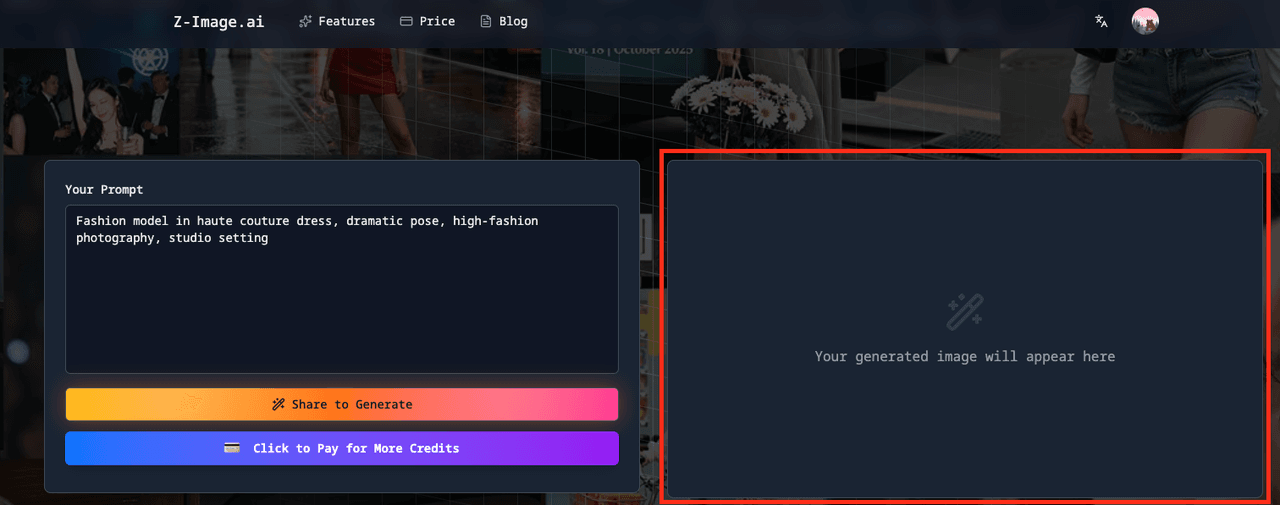
Where your images actually go
If you're using Z-Image Turbo via ComfyUI (the most common setup right now):
-
Generated images are typically written to an output folder defined in your workflow.
-
The default is often something like:
./output
- Each render gets timestamped filenames so you can find batches quickly.
If you're using a web UI / Space (e.g. Hugging Face demo):
-
Images usually appear in a gallery panel.
-
You download each one manually via a Download or Save button.
Basic export workflow (ComfyUI + Z-Image Turbo)
Here's the workflow I now recommend to avoid losing good outputs:
- Step 1 – Confirm your output node
In ComfyUI, locate the final node that writes images, often called Save Image or SaveImage.
- Set Filename prefix to a project name, e.g.:
zimage_clientA_campaign
-
Double‑check Output directory is a folder you actually back up.
-
Step 2 – Choose your format
In the same node, you'll usually see a File format or Extension option:
-
Select PNG for design work, compositing, and transparent assets.
-
Select JPG/JPEG for fast web previews or social posts.
-
Step 3 – Set quality parameters
Some UIs let you adjust compression, for example:
`quality: 90
format: jpg`
I've found quality: 90–95 is the sweet spot for online use. Above that, file sizes balloon with minimal visible gain.
- Step 4 – Export multiple variants safely
When exploring prompts, I like to keep all variants:
-
Use a node or setting like Add timestamp or Incremental numbering.
-
Avoid overwriting by leaving the default auto‑indexing on.
-
Step 5 – Manual export from web demos
If you're working in browser demos (e.g. Official Documentation or Hugging Face Z-Image Turbo Space):
-
Click Download under each image you care about.
-
Immediately move them into a project‑specific folder locally.
This is the detail that changes the outcome: a simple, consistent naming convention turns your Z-Image output folder from chaos into a usable asset library, especially once you're generating hundreds of images per week.
PNG vs. JPG: Choosing the Best Format for Your Z-Image Art
You don't need a deep graphics background to pick formats wisely, but the wrong choice can trash text clarity or blow up your storage budget.
When I use PNG for Z-Image outputs
I default to PNG when:
-
I'm planning further editing in Photoshop, Figma, or another editor.
-
The image has UI elements, logos, or small text that must stay razor‑sharp.
-
I need transparent backgrounds (where the workflow supports them).
Why PNG works well for creators:
-
It's lossless, so re‑saving doesn't add artifacts.
-
Fine lines, icons, and typography stay crisp.
-
Better for assets that will go into print layouts or be scaled.
Example parameter block in a save node:
format: png
When I use JPG for Z-Image outputs
I switch to JPG when:
-
I'm creating social media visuals or quick mockups.
-
I need to send a batch of previews to a client.
-
Disk space or upload limits are an issue.
Set your quality parameter roughly like this:
`format: jpg
quality: 90`
At quality: 90, you'll rarely notice compression artifacts on photos or painted scenes, but file sizes stay modest.
How text accuracy is affected

Z-Image is specifically optimized for legible embedded text (menus, posters, UI, signage). That advantage can be softened if you compress too hard.
My own rule of thumb:
-
For text‑heavy layouts (posters, covers, UI screens): generate and export as PNG.
-
For photo‑style images with incidental text (street scenes, packaging in background): high‑quality JPG is usually fine.
If you see halos or fuzziness around lettering after export, you've likely:
-
Used JPG at low quality (e.g. quality: 70 or below), or
-
Resized the image aggressively in a separate app.
In that case, regenerate or re‑export from your original PNG master instead of constantly re‑saving JPGs.
Official Z-Image Models: Where to Download Safely
Z-Image is open research, which is great, but it also means random forks, tweaked checkpoints, and sketchy downloads floating around. I stick to a few trusted sources only.
Trusted sources for Z-Image and Z-Image Turbo
Here's where I go when I need a fresh model download:
- Hugging Face – Official Z-Image Turbo page
The official card for Z-Image Turbo, maintained by the Tongyi-MAI team:
This is where you'll usually find:
-
Model files (.safetensors or similar).
-
Example workflows and prompts.
-
Version notes and known limitations.
- ModelScope – Official Z-Image models
For some regions, ModelScope is more accessible:
– ModelScope Z-Image Turbo page
- GitHub – Tongyi-MAI / Z-Image repository
– Tongyi-MAI / Z-Image repository
This is my reference for:
-
Source code and architecture details.
-
Links out to official weights.
-
Gallery PDFs and example images.
-
Official blog & documentation
What I look for before downloading
Before I touch a checkpoint, I validate a few basics:
-
Publisher name matches the official team (Tongyi-MAI or linked labs).
-
License field is actually filled in and readable.
-
Last updated date is recent enough to be relevant.
-
Example outputs are consistent with what the research paper describes.
Counter-intuitively, I found that the more "custom super‑turbo mega" a checkpoint sounds, the more likely it is to have weird artifacts or broken text rendering. For client work, I stick to official or clearly documented variants.
Where Z-Image downloads are NOT ideal
Z-Image (and Z-Image Turbo) are image diffusion models, not vector design tools or brand‑system engines.
You probably shouldn't base your workflow around Z-Image alone if:
-
You need vector‑perfect logos or icons: use Illustrator, Figma, or similar instead.
-
Your project demands strict brand guideline adherence for exact colors and proportions.
-
You require legal guarantees around training data provenance beyond what open research models typically provide.
In those cases, I treat Z-Image more as a concept generator and then rebuild exact assets manually.
How to Install and Run Z-Image Locally: A Step-by-Step Guide
Running Z-Image locally gives you faster iteration, higher privacy, and better control over exports. It does demand some GPU VRAM and a bit of patience the first time through.
Prerequisites
Before you start, make sure you have:
-
A dedicated GPU (NVIDIA with at least 8 GB VRAM is a comfortable minimum: more is better).
-
Python installed (commonly 3.10+ for modern diffusion stacks).
-
Enough disk space for models (plan on several GB).
AI tools evolve rapidly. Features, installation commands, and dependencies can change, so always cross‑check with the official repository's instructions before copying commands blindly.
Step-by-step: Typical ComfyUI + Z-Image Turbo install
The exact commands may vary, but the workflow usually looks like this:
Step 1 – Set up ComfyUI
-
Clone or download ComfyUI from its official repo.
-
Follow its README to install Python dependencies.
-
Confirm it runs by starting the server and opening the web UI in your browser.
Step 2 – Download Z-Image Turbo models
-
Go to the official Z-Image Turbo page on Hugging Face or ModelScope.
-
Download the main model file, for example:
Z-Image-Turbo.safetensors
- Place it in the folder ComfyUI expects for custom checkpoints (commonly something like models/checkpoints/).
Step 3 – Add Z-Image workflows / nodes
-
From the official docs or GitHub repository, download any custom nodes or example workflows.
-
Drop custom node code into ComfyUI's custom_nodes directory.
-
Restart ComfyUI so it discovers the new components.
-
Tip: If you are planning complex compositions, check out the Z-Image Turbo ControlNet Union creator guide to ensure you have the right nodes installed.
Step 4 – Load an example workflow
-
In the ComfyUI interface, import a Z-Image Turbo workflow JSON from the docs or repo.
-
Check nodes like Checkpoint Loader, Sampler, and Save Image are properly wired.
-
Step 5 – Configure key parameters
Typical generation parameters might look like:
steps: 20

cfg_scale: 4.5

width: 1024

height: 1024

seed: -1-
Keep steps conservative at first to check performance.
-
Adjust width and height to match your GPU VRAM limits.
-
Step 6 – Test a text-heavy prompt
To confirm Z-Image's text performance, I often start with something like:
prompt: "minimalist event poster, large centered text 'SUMMER LIGHTS 2025', clean layout, white background, high contrast"
When everything is wired correctly, you'll see crisp, readable letters in most outputs. I
f text comes out garbled:
-
Re‑check that you loaded the correct Z-Image Turbo checkpoint.
-
Compare your settings against an example workflow from the official docs.
-
For deeper troubleshooting and advanced prompt techniques, refer to our Z-Image GitHub guide to perfect text.
Ethical Considerations for Local Z-Image Workflows
Whenever I'm running Z-Image locally for real projects, I keep three ethical pillars in mind:
- Transparency about AI use
If I deliver images generated (or heavily assisted) by Z-Image, I label that clearly in documentation, proposals, or credits. Clients and audiences deserve to know when content comes from a diffusion model rather than purely manual design.
- Bias and content control
Like any diffusion model, Z-Image can reflect biases present in its training data. I actively review generations for stereotypical or harmful patterns, especially when depicting people, cultures, or sensitive topics, and regenerate or adjust prompts where needed. When possible, I build review steps into my workflow so biased outputs never reach production.
- Copyright and ownership in 2025
Laws continue to evolve, but I follow a few conservative rules:
-
Avoid using Z-Image to imitate specific living artists or trademarked characters.
-
Treat model‑generated work as commercially usable, but still keep records of prompts, seeds, and versions for each project.
-
Respect any license terms listed on the model page (commercial use, attribution, redistribution limits, etc.).
When in doubt, I combine AI‑generated concepts with manual redrawing or vectorization to keep deliverables clearly distinct from any recognizable third‑party IP.
Wrapping up: a repeatable Z-Image download workflow
My stable process today looks like this:
-
Grab official models only from Hugging Face, ModelScope, or GitHub links in the main repository.
-
Wire Z-Image Turbo into ComfyUI, starting from a known‑good example workflow.
-
Test with a text‑heavy prompt to confirm that the model's core advantage, accurate, legible text, is actually working in my setup.
-
Export to PNG for anything important, and JPG only for quick sharing or previews.
Follow this once and you'll have a local Z-Image environment you can rely on for campaigns, thumbnails, product visuals, and more.
Z-Image Download: Frequently Asked Questions
Where can I find the official Z-Image download links for models and code?
For a safe Z-Image download, stick to official sources only: the Z-Image Turbo model card on Hugging Face, the Z-Image section on ModelScope, and the Tongyi-MAI / Z-Image GitHub repository. These typically provide model checkpoints, example workflows, documentation, and links to the latest, verified releases.
How do I safely install Z-Image Turbo with ComfyUI after downloading the model?
First, install and run ComfyUI from its official repo. Then perform your Z-Image download from Hugging Face or ModelScope and place the checkpoint file in ComfyUI’s models/checkpoints folder. Add any required custom nodes, restart ComfyUI, load an official workflow JSON, and test with a text-heavy prompt.
What is the best way to export images after a Z-Image download and setup?
Use a Save Image node in ComfyUI as your final output. Set a clear filename prefix and a backed‑up output folder. Choose PNG for high‑quality design work or text‑heavy layouts, and JPG (quality around 90–95) for web previews and lighter files. Enable timestamps or auto‑indexing to avoid overwriting.
Should I export Z-Image artwork as PNG or JPG for the best quality?
Export as PNG when you plan further editing, need transparency, or must keep UI elements and small text razor‑sharp. Choose high‑quality JPG (around quality 90) for social posts, previews, or large batches where file size matters. For posters, covers, and UI screens, PNG is the safer default.
What are the minimum system requirements to run Z-Image locally?
For a smooth local Z-Image experience, use a dedicated NVIDIA GPU with at least 8 GB VRAM, Python 3.10 or newer, and enough disk space for multiple multi‑GB model files. While CPUs can sometimes run diffusion models, performance is usually too slow for serious work without a capable GPU.