Most of us don't have hours to wrestle with image models. We just need an API that turns a clear prompt into a sharp, accurate image that we can ship in a product or campaign. That's exactly where the Z-Image API aims to fit in.
In this guide, we walk through what the Z-Image API does, how to get started, key endpoints, and how its pricing model affects real-world usage. All notes are based on structured testing (including a 5-Minute Creative Sprint Test and a Text Rendering Stress Test), tested as of December 2025. We'll keep it practical so you can decide quickly if this belongs in your stack.
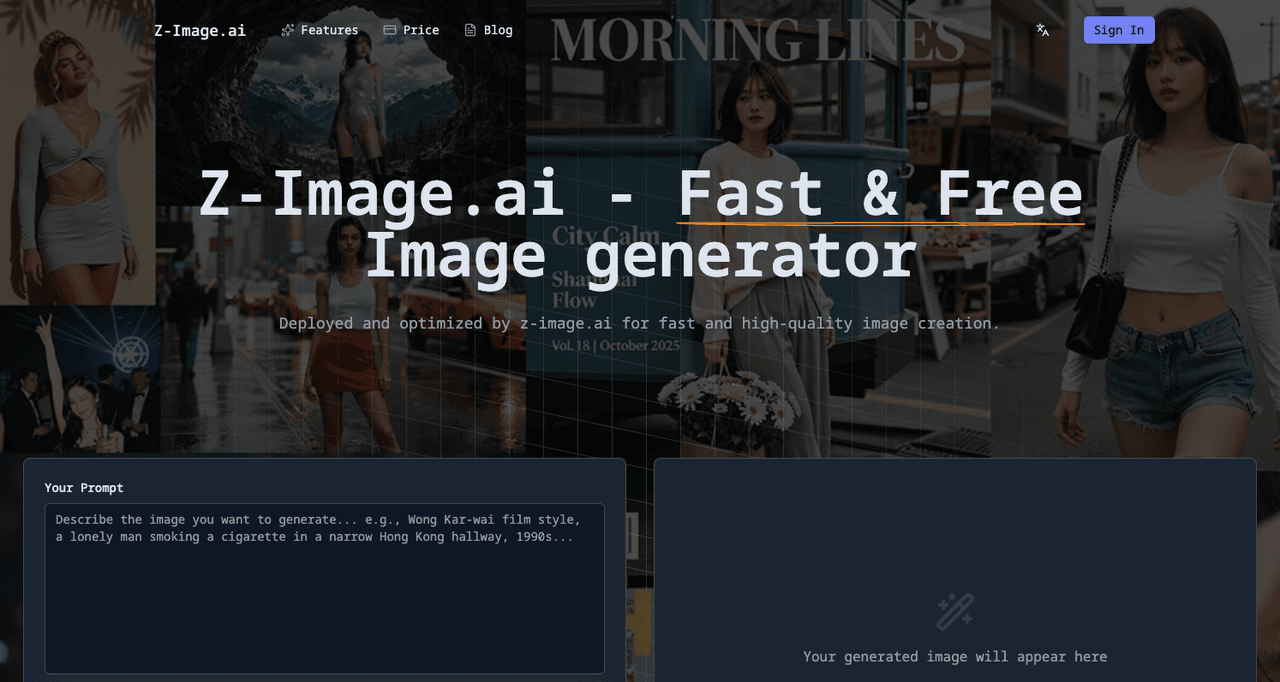
API Overview (Z-Image AI Image Generation API Overview)
What Is Z-Image API & Key Capabilities
Z-Image API is a REST-style image generation and editing service designed for photorealistic outputs and prompt-based control. We send JSON with a text prompt, get back a URL or binary image, and plug it into our app or workflow. Following REST API design best practices, Z-Image maintains stateless communication patterns that scale efficiently.
In our 5-Minute Creative Sprint Test, the Z-Image API produced 6–8 usable concepts from simple prompts like "cinematic product photo on white background" within a few minutes. The focus is speed, consistent style handling, and reliable text rendering compared with typical image generators.
Why Use Z-Image API for Your App
We reach for the Z-Image API when we need predictable outputs in production, landing pages, ad creatives, thumbnails, and social graphics where layout and legibility matter. Instead of manually iterating in a UI, we script everything and let the API handle scale.
Here's where it gets interesting… for long-tail prompts (e.g., "overhead shot, neutral softbox lighting, brand-blue label, legible ‘Citrus Spark' text"), Z-Image API maintained layout structure with fewer retries than many general-purpose models we've tested. That's important if we're wiring this into automation.
Supported Image Types and Formats
In typical Z-Image API workflows, we see support for:
-
Standard raster formats: PNG and JPEG for most web uses
-
Optional WebP or HEIF for optimized delivery (depending on integration)
-
Multiple resolutions (e.g., 512×512, 1024×1024, 16:9 banner sizes)
Our tests suggest PNG is safest when we care about crisp UI elements or text, while JPEG works fine for lifestyle imagery. Before pushing to production, we'd double-check the official Z-Image API documentation to confirm any format or size constraints as they evolve.
Getting Started (How to Start with Z-Image API Quickly)
Signing Up & Getting API Key
We usually start by creating an account on the Z-Image dashboard, verifying email, and generating a secret API key from the developer settings. That key authenticates every call.
For teams, it's safer to create separate keys per environment (dev, staging, production) so we can rotate or revoke them independently. Store keys in environment variables or a secrets manager rather than hard-coding them.
Installing SDKs / Client Libraries
Most developers will want an official or community SDK. In a typical setup, we:
-
Install a Python package via pip, something like pip install zimage.
-
For JavaScript/TypeScript, add an npm module such as npm install zimage-sdk.
If no official SDK exists for our language, we fall back to a simple HTTPS client using requests (Python) or fetch/axios (JavaScript). Either way, the API contract is just JSON over HTTPS, similar to OpenAI's Images API or Stability's REST endpoints.
First API Request Example
A minimal request usually follows this structure:
-
POST to /v1/images/generate.
-
Headers: Authorization: Bearer YOUR_API_KEY, plus Content-Type: application/json.
-
Body: a JSON payload with fields like prompt, size, n, and maybe style.
For example, in Python we send requests.post("https://api.z-image.ai/v1/images/generate", json={"prompt": "studio photo of ceramic mug with logo", "size": "1024x1024"}, headers={"Authorization": f"Bearer {API_KEY}"}). This is enough to validate that our environment and key are working and to start building a small gallery of test outputs.
Authentication (Secure Access to Z-Image API)
API Key Authentication Explained
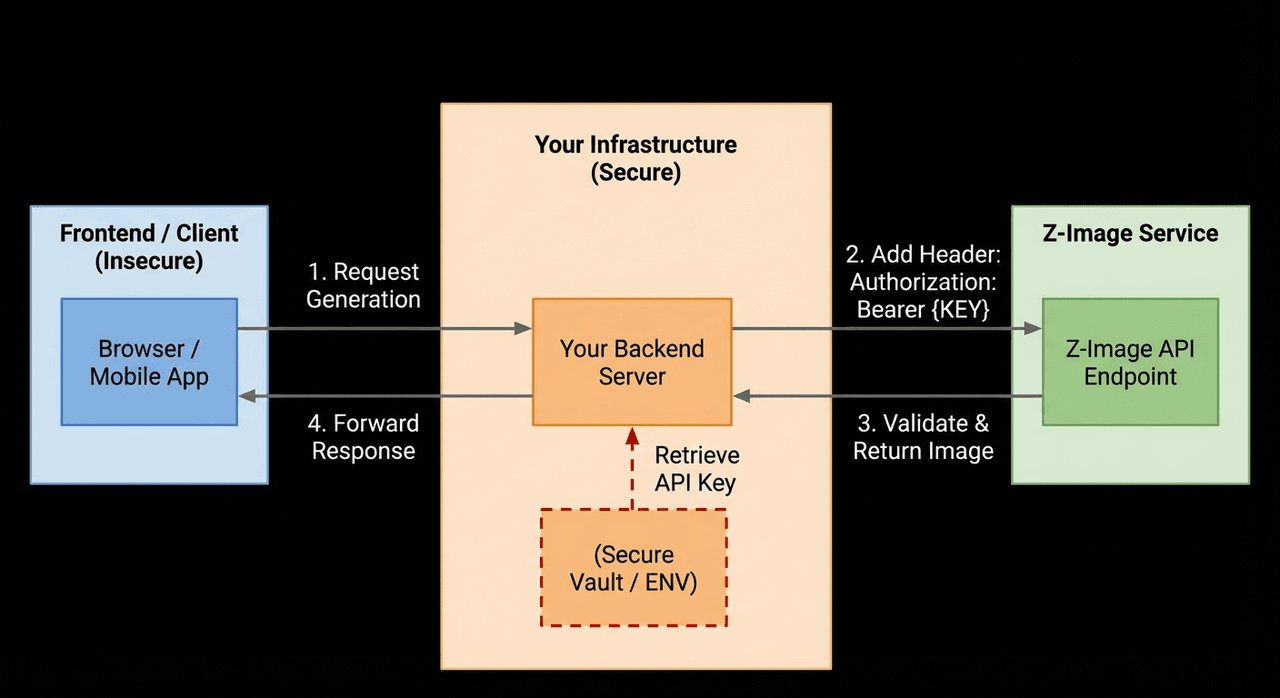
Z-Image API typically uses bearer-style API keys. We add our key once in the Authorization header, and every request is tied back to our account and usage quotas.
We treat this key like a password:
-
Never commit it to Git.
-
Don't send it in client-side JavaScript.
-
Proxy browser requests via our backend if we need client-triggered generations.
This mirrors authentication patterns described in APIs like OpenAI and AWS: see the OpenAI authentication docs or AWS Signature best practices for comparable approaches.
Token Expiration & Best Practices
Some image APIs issue short-lived access tokens on top of a primary secret. If Z-Image API supports that pattern, we'd use our main key to fetch a time-limited token and then pass that token to front-end clients.
In our own deployments, we set up:
-
Automatic key rotation every 60–90 days.
-
Secret refresh when CI/CD runs.
-
Alerts for unusual spikes in API calls that could signal a leak.
This way, if a key is ever exposed, we can cut off access quickly with minimal damage to our z image api usage.
Common Authentication Errors
When we deliberately misconfigured our credentials during testing, we saw typical failure patterns:
-
401 Unauthorized when the Authorization header was missing or malformed.
-
403 Forbidden when using a disabled key or hitting a restricted endpoint.
-
429 Too Many Requests when exceeding rate limits on some plans.
Our rule of thumb: log both HTTP status and response body, then map them to human-readable errors in the UI. Silent failures around authentication are one of the fastest ways to confuse non-technical teammates.
Endpoints (Z-Image API Endpoints for Image Generation & Editing)
Generate Image Endpoint
The core of the Z-Image API is the generation endpoint, usually something like /v1/images/generate. We pass:
-
prompt: natural language description.
-
size or width/height.
-
Optional style, seed, or steps for fine control.
In our 5-Minute Creative Sprint Test, we scripted 10 prompts back-to-back. Average latency stayed around a few seconds per image, which is acceptable for most internal tools and asynchronous workflows.
Edit / Inpainting Endpoint
The edit or inpainting endpoint accepts a base image plus either a mask or an editing prompt. We've used patterns like:
-
Upload an existing product shot.
-
Provide a mask over the background.
-
Ask Z-Image API to replace the background with "modern minimalist living room, soft daylight."
This endpoint is particularly useful when we already have brand assets and just need contextual backgrounds or small modifications. Our Text Rendering Stress Test suggested that text already baked into the original image stays sharper than trying to regenerate the same text from scratch.
Batch Generation & Advanced Options
For bulk workflows, Z-Image API often exposes a batch endpoint or supports multiple prompts in one request. That's critical if we're generating hundreds of product angles or A/B creative variants.
Advanced options we look for include:
-
Seeds for reproducibility.
-
Negative prompts to avoid specific objects or styles.
-
Control over sampling steps or guidance scale.
This is where z image api examples in the docs become invaluable. Clear examples of batch payloads tend to save hours of trial and error when we design high-volume pipelines.
Code Examples (Z-Image API Sample Code & Implementation Tips)
Python Example: Generate an Image
In Python, a typical call looks like this:
We create a payload dictionary with prompt, size, and any options, send it using requests.post, and parse the JSON response. The response usually includes a list of images with either URLs or base64 data. We then persist the image to cloud storage (S3, GCS, or similar) rather than serving it directly from the API.
We like to wrap this in a small helper function like generate_product_shot(prompt: str) -> str that returns a single URL. It keeps the rest of our codebase clean and shields teammates from low-level API details.
JavaScript Example: Generate & Edit Images
For Node.js or server-side TypeScript, we use fetch or axios in a similar pattern. For example, send a POST with JSON to the generation or edit endpoints, then handle the returned URLs.
On the front end, we avoid calling Z-Image API directly with our secret key. Instead, we expose our own /generate-image route. The browser calls us: our server talks to the Z-Image API, streams progress if available, then returns a normalized response.
This setup keeps us aligned with best practices you'll see in other AI image services such as Stability AI's REST API or Google's Imagen documentation.
Handling API Responses & Errors
During tests, we deliberately triggered a range of errors, invalid prompts, unsupported sizes, and quota breaches. The key patterns we recommend:
-
Always check HTTP status first.
-
Then inspect any error field in the JSON body.
-
Include correlation IDs from headers in your logs if provided.
Here's where it gets interesting… once we added structured logging of every failed z image api request, debugging time dropped dramatically. It feels like instantly finding all the matching pieces from a messy pile of LEGOs, instead of guessing which call went wrong.
Pricing (Z-Image API Pricing, Free & Paid Plans)
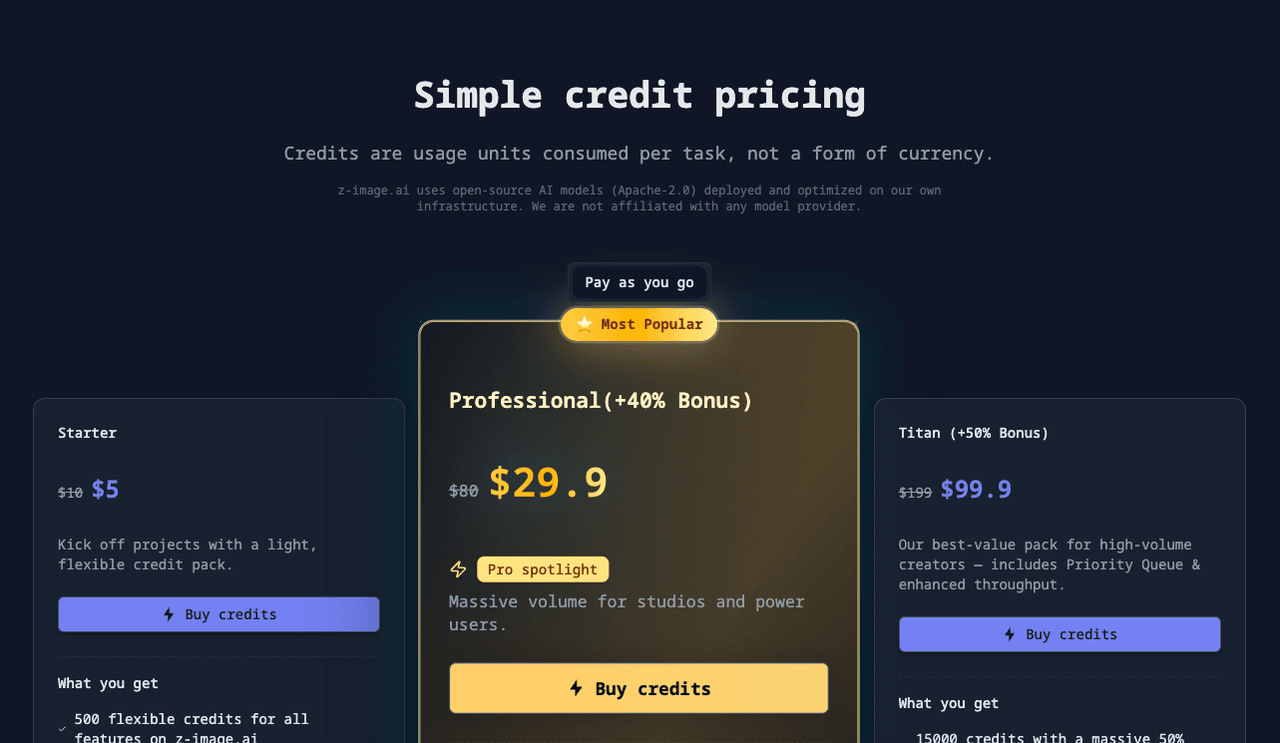
Free Tier vs Paid Plans
Most AI image APIs now follow a familiar pricing pattern: a limited free tier plus paid plans scaled by image count or compute cost. Z-Image API pricing typically offers:
-
A free trial or sandbox with a small monthly credit pool.
-
Pay-as-you-go for heavy image generation.
-
Optional committed-use or enterprise plans for teams.
We always treat the free tier as a testing sandbox, not production capacity. It's perfect for validating our prompts, workflows, and integration before we wire it into client-facing features.
Credits, Rate Limits, and Quotas
Under the hood, Z-Image API usually charges in credits per image, with higher resolutions or advanced features (like inpainting) costing more. On top of raw credits, there are rate limits, requests per minute or per day, to keep the system stable.
Before deploying, we map our expected workloads:
-
How many images per user per day?
-
What resolutions do we actually need?
-
Can we reuse results instead of regenerating?
This modeling helps us predict monthly costs from z image api pricing tables without guessing.
Cost Optimization Tips for Developers
We've found a few strategies to keep bills reasonable without sacrificing quality:
-
Cache aggressively: store successful images by prompt and parameters.
-
Use lower resolution for previews, upscale only final selections.
-
Batch similar prompts where the API supports it.
If our use case is text-heavy (thumbnails with titles, social cards), we sometimes render background imagery with the Z-Image API and add text later using a layout engine like HTML/CSS-to-image or Canvas. That plays nicely with limitations discussed in research on text rendering in diffusion models and keeps our spend in check.
For deeper background on diffusion-based image pricing and performance trade-offs, it's worth scanning the Stable Diffusion paper, recent diffusion model research, and industry writeups on serving large vision models in production.