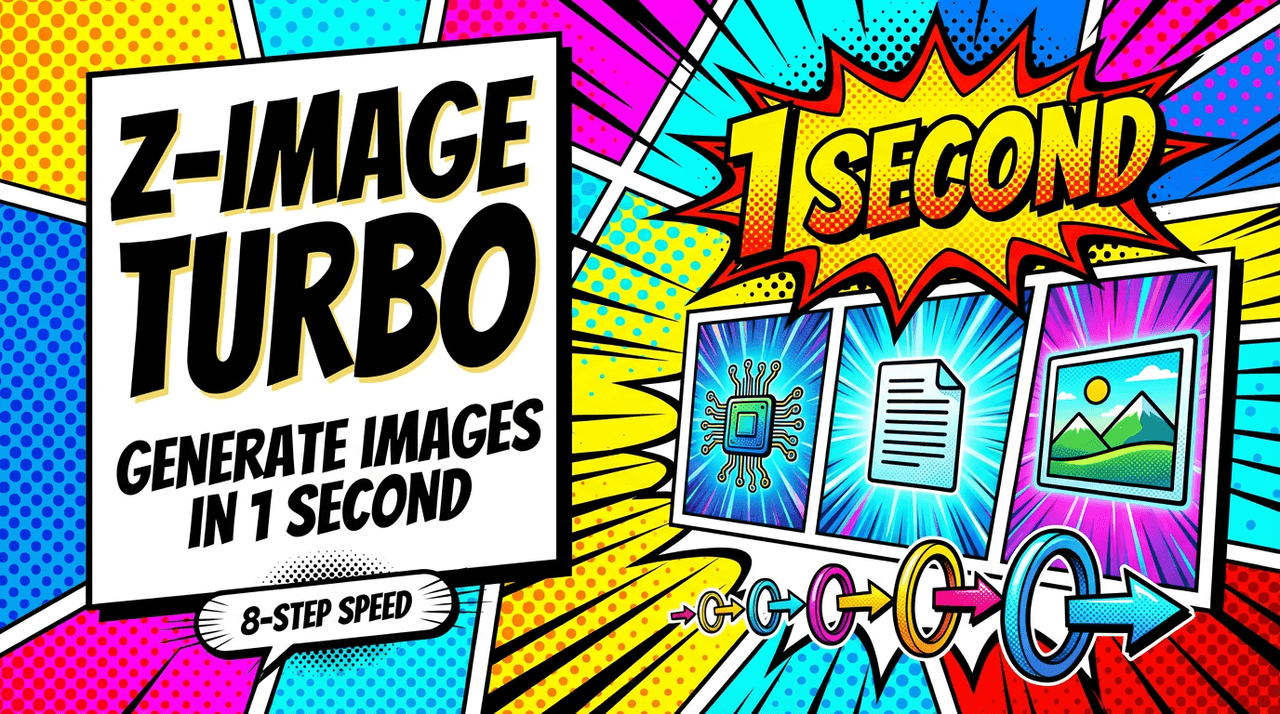
We've all stared at a loading spinner, waiting 15–30 seconds for a "simple" AI image. When we're building ad sets, thumbnails, or product shots at scale, that wait time kills momentum. That's exactly the problem Z-Image Turbo is built to solve: generating usable, photorealistic images in under a second.
In this guide, we're breaking down how Turbo mode actually works in real workflows, when to trust it, when to avoid it, and how to write prompts that play to its strengths. If you've ever wondered whether "Turbo" just means lower quality, this is for us.
What Is Turbo Mode?
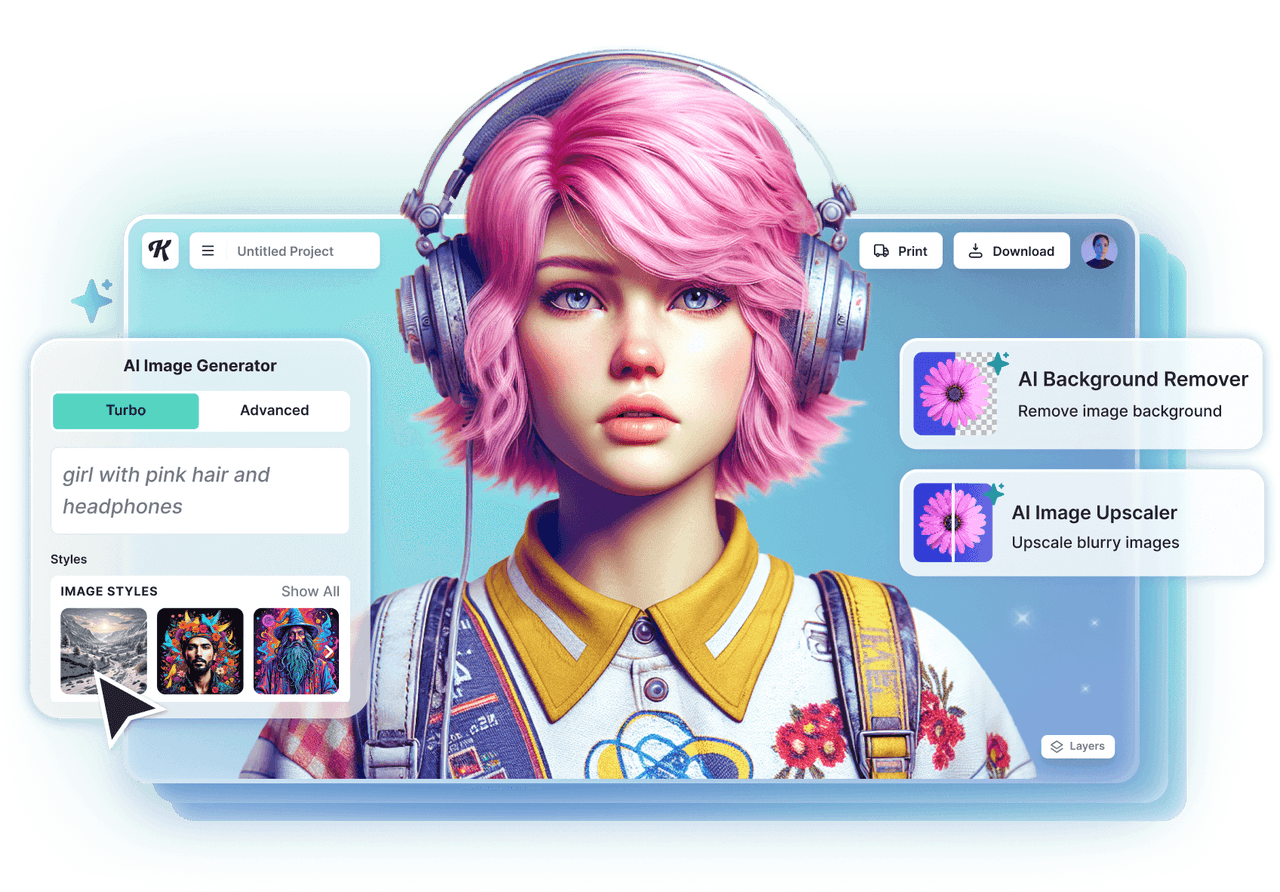
Z-Image Turbo Explained in 30 Seconds
Z-Image Turbo is a speed-optimized generation mode designed to produce images almost instantly, typically around the 0.5–1.0 second mark, depending on your prompt and device. Instead of pushing for the highest possible detail on the first pass, it prioritizes fast, "good enough" visuals you can iterate on quickly.
In practice, that means we can:
-
Spin up dozens of thumbnail options in a few minutes
-
Rapidly A/B test ad concepts
-
Generate quick concepts for clients live on a call
It's less about the single perfect hero image and more about fast idea exploration.
How Turbo Mode Delivers Images in Under 1 Second
Turbo mode doesn't magically make GPUs faster. It changes the generation strategy:
-
Uses fewer denoising steps than normal mode
-
Applies a more aggressive sampler tuned for speed
-
Leans on pre-optimized defaults (resolution, upscaling, sometimes style) that are known to render fast
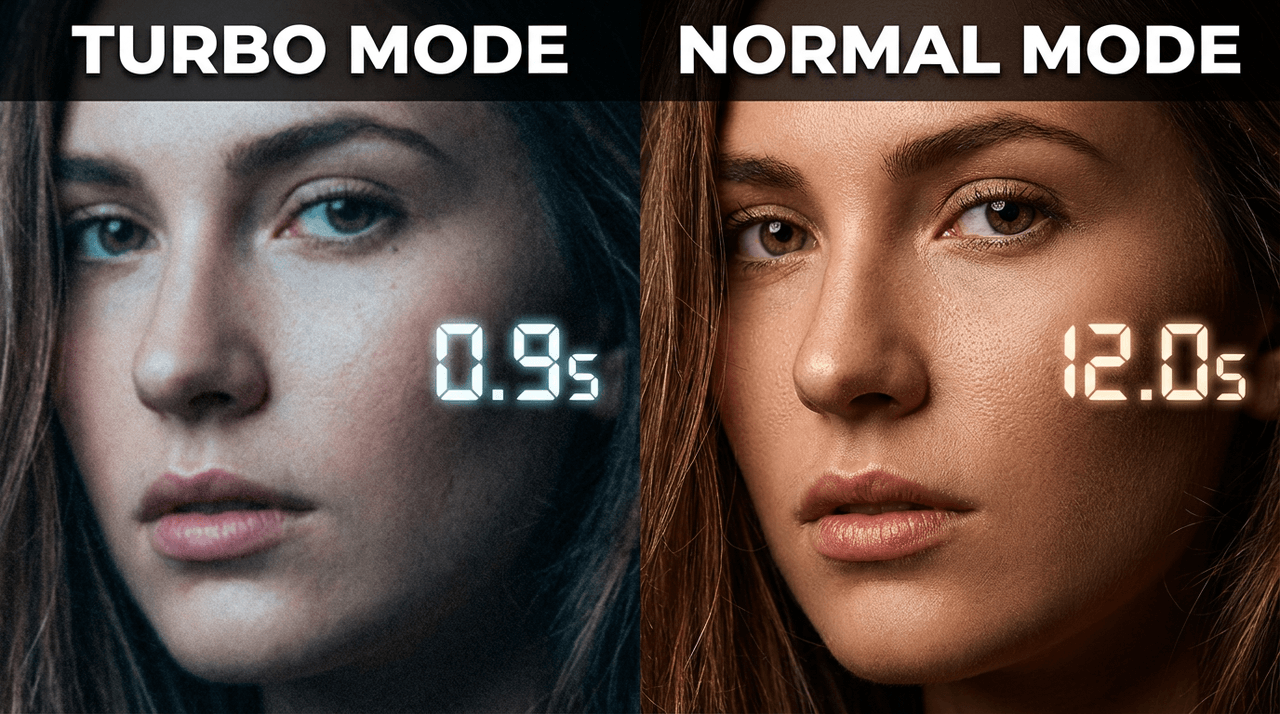
Because the model takes fewer steps to "clean up" noise, it reaches a solid result sooner, but with slightly less micro-detail. Here's where it gets interesting: for social media, presentations, and small website graphics, that missing 5–10% of detail is usually invisible.

Key Differences Between Normal and Turbo Generation
In our tests (desktop, fast connection, tested as of December 2025):
- Speed
Turbo: ~0.7–1.2 seconds per image
Normal: ~8–15+ seconds per image
- Detail level
Turbo: Strong composition, good lighting, slightly softer edges
Normal: Better fine textures (skin pores, fabric weave, reflections)
- Text rendering
Turbo: Good for short, simple text (1–3 words) at medium size
Normal: More reliable for longer text, small font sizes, or complex layouts
- Best use
Turbo: Concepts, variations, quick social posts, rough layouts
Normal: Final key visuals, print-level clarity, intricate product shots
Who Should Use Turbo Mode (And When to Skip It)
Turbo mode is ideal when:
-
We're brainstorming many ideas in a short session
-
We need fast image turnaround for campaigns
-
We're testing hook images or ad concepts before committing to polish
We should skip Turbo mode when:
-
We're preparing print materials or high-res banners
-
Precise product detail or branding is non‑negotiable
-
We need long, perfectly readable text in one render
A practical strategy: generate in Turbo first, shortlist winners, then re‑generate the best ones in normal mode for final quality.
Speed vs Quality

Real Speed Test: 1 Second vs 10+ Seconds Compared
To see how Z-Image Turbo behaves in a real workflow, we ran this side-by-side test:
Prompt:
"Ultra-realistic product photo, matte black wireless headphones on a white background, soft studio lighting, centered, minimal shadows, text ‘NEW' on a small tag."
-
Turbo mode: First image in about 0.9 seconds
-
Normal mode: First image in about 11.4 seconds
In a 5‑minute sprint, we generated:
-
Turbo: 38 usable variations
-
Normal: 11 higher-detail variations
For ad testing, those extra 20+ versions matter more than slightly sharper textures.
Does Turbo Sacrifice Image Quality? (Honest Breakdown)
Short answer: yes, a bit, but not as much as we'd expect.
We consistently see these patterns:
-
Faces: Turbo is slightly softer, with less pore-level texture
-
Backgrounds: Sometimes less nuanced, but rarely distracting
-
Text: Clean for 1–2 words: longer lines can warp or curve
On social feeds, story slides, and web thumbnails, that loss in fine detail is almost invisible. Where it shows is on big screens, close-up crops, or print.
When Speed Matters More Than Perfection
Turbo mode shines in workflows where momentum is more valuable than microscopic detail:
-
Thumbnail factories for YouTube, TikTok, or Reels
-
Ad concept rounds where we're pitching several directions
-
Live sessions with clients or teams on calls
If the image is going to be:
-
Viewed on mobile
-
Used for a time-sensitive campaign
-
Tested among many variants
…then Z-Image Turbo mode is usually the smarter choice.
Pro Tips to Maximize Quality in Turbo Mode
We can squeeze surprising quality out of Turbo with a few habits:
-
Start with slightly higher resolution (if available) and downscale later. Downscaling hides some of the softness.
-
Use clear, simple compositions: one main subject, clean background. Turbo struggles more with chaotic scenes.
-
Keep text short and bold: think "SALE", "NEW", "-50%" rather than long sentences.
-
Use style anchors like "high-end product photography", "cinematic lighting", "studio background". These guide the model toward polished, ad‑ready looks even in fewer steps.
When we need both speed and detail, a good compromise is: Turbo for scouting, normal for finals.
How to Enable
Step-by-Step: Activating Z-Image Turbo in 8 Clicks
The exact layout can change, but as of the 2025 interface, the flow is usually:
-
Open Z-Image and log in.
-
Go to the Image Generation or Create page.
-
Select your model / style preset.
-
Set your canvas size or aspect ratio.
-
Look for the generation settings or Advanced dropdown.
-
Toggle Turbo or Turbo Mode to ON.
-
Enter your prompt and optional negative prompt.
-
Hit Generate and watch the under‑1‑second render.
Where to Find the Turbo Toggle (Updated 2025 Interface)
In the 2025 UI refresh, the Turbo toggle is usually placed near other speed or quality controls, often labeled something like:
-
"Turbo (fast)"
-
"Performance mode"
-
Or a lightning‑bolt icon next to "Quality"
If we don't see it:**
-
Check for an Advanced or More settings section
-
Make sure we've selected a supported model (some legacy models don't offer Turbo)
Common Mistakes When Enabling Turbo (And How to Fix Them)
These are the issues we see most often:
- Turbo is on, but results are still slow
Usually caused by huge resolution (e.g., 4K). Solution: drop resolution, generate fast, then upscale the winners.
- Turbo looks identical to normal mode
Sometimes means Turbo isn't actually toggled for that model. Double-check model compatibility and the active profile.
- Text looks worse than expected
This usually happens with long phrases or small fonts. Shorten the text and increase its size in the layout description.
Mobile vs Desktop: Enabling Turbo on Every Device
On desktop, Turbo is typically in the main sidebar or right panel. On mobile, it's often tucked behind:
-
A settings gear icon
-
A "Speed / Quality" dropdown
-
Or an expandable Advanced section below the prompt
If we're working cross‑device:
-
Use Turbo on mobile to brainstorm on the go
-
Use desktop normal mode when it's time to polish final images at full resolution
That way, we keep the fast ideation benefits of Z-Image Turbo without locking ourselves into its quality ceiling.
Best Prompts for Turbo
Why Prompt Style Matters Most in Turbo Mode
Turbo mode has less time to "figure out" messy instructions. Our prompt design needs to be sharp, simple, and priority‑driven.
In fast mode, we've found these rules work best:
-
Put the main subject in the first 8–10 words
-
Describe lighting and background in short phrases
-
Avoid stacking 5 different art styles in one sentence
Clear prompts make Turbo feel like instantly finding all the matching pieces from a messy pile of LEGOs.
10 High-Conversion Prompts That Work Instantly in Turbo
Here are examples tailored for speed and results:
-
"Close-up of smiling woman holding skincare bottle, white background, studio lighting, ad photo."
-
"Minimalist flat lay, coffee cup and notebook on clean desk, top view, soft daylight."
-
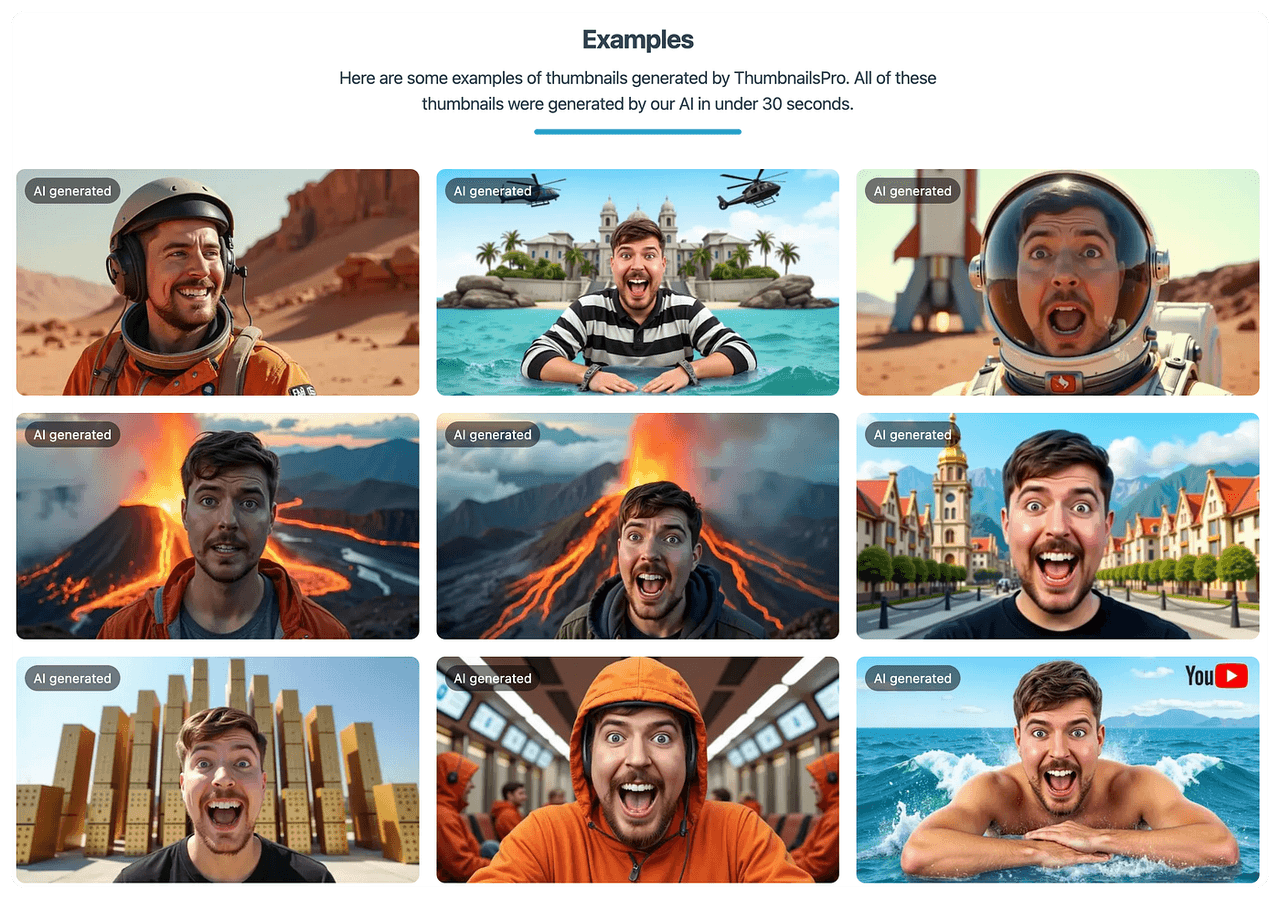
"Bold YouTube thumbnail, shocked man, blurred background city, big text ‘SHOCKING TRUTH'."
-
"Modern tech product mockup, smartphone on reflective surface, dark background, neon edges."
-
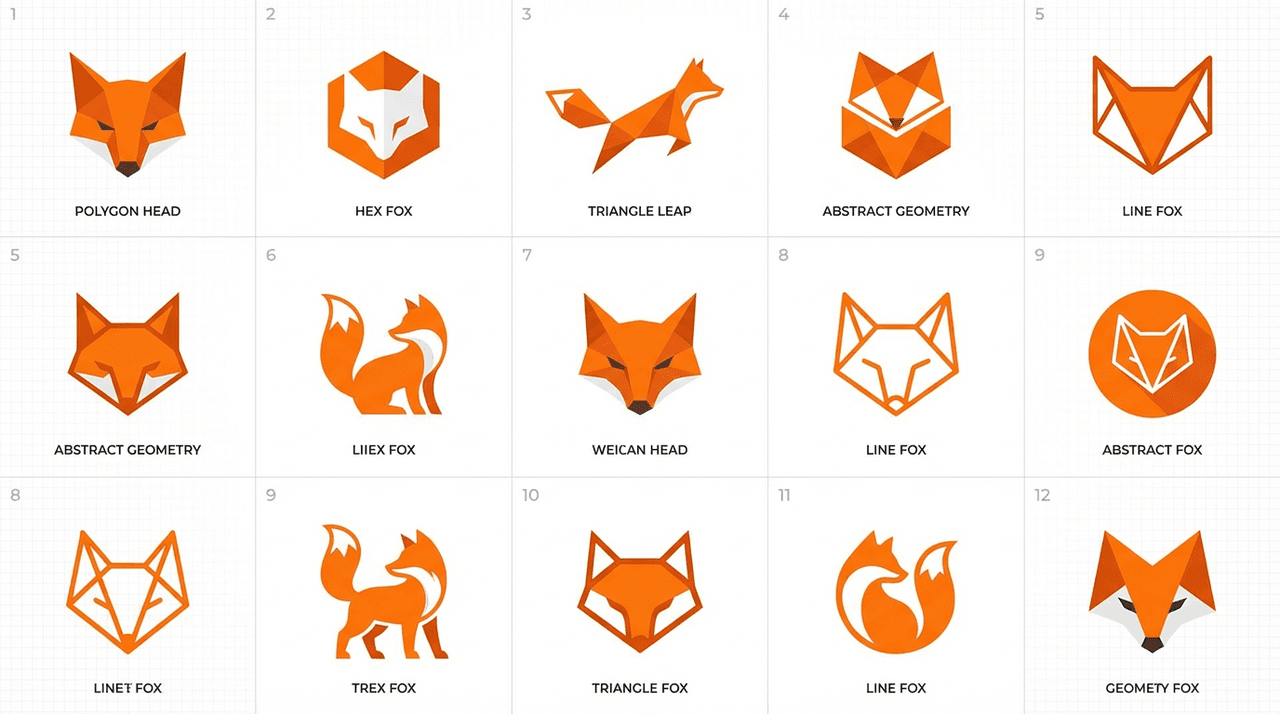
"Logo concept, simple geometric fox icon, orange and white, flat vector style."
-
"Ecommerce shoe photo, white background, soft shadows, floating sneaker, product focus."
-
"Podcast cover art, hosts side by side, colorful gradient background, bold title text."
-
"Instagram story sale banner, pastel background, big text ‘SPRING SALE', minimal icons."
-
"Concept art, futuristic city skyline at sunset, cinematic lighting, wide shot."
-
"Realistic office banner, diverse team brainstorming, bright modern workspace, wide photo."
Short vs Detailed Prompts: What Performs Best at 1-Second Speed
In normal mode, detailed prompts can help. In Turbo, overly long prompts can confuse priorities.
Our results:
-
Short + focused prompts: Faster, more consistent compositions
-
Medium detail (1–2 lines): Best balance of control and speed
-
Long paragraphs: More chance of jumbled layouts or missing elements
Aim for 1–3 short sentences. Enough detail to steer the model, not enough to choke it.
Prompt Templates You Can Copy-Paste for Turbo Success
Use these as quick-start templates:
- Product promo:
"Ultra-realistic [product] on [background], [lighting style], centered, ad photography."
- Thumbnail:
"[emotion] person, [background type], bold text ‘[short phrase]', high contrast, YouTube thumbnail style."
- Logo draft:
"Simple flat logo, [animal/object] icon, [2–3 colors], modern, vector style, centered."
- Social banner:
"[platform] banner, [mood] design, big text ‘[short offer]', clean layout, high contrast."
Avoid These Prompt Mistakes That Slow Down Turbo
To keep Z-Image Turbo responsive and accurate, avoid:
-
Mixing too many styles: "3D Pixar anime oil painting cyberpunk watercolor…"
-
Long, multi‑line copy blocks inside the prompt
-
Vague asks like "cool background" instead of "blurred city lights" or "solid blue"
Clean prompts give Turbo fewer decisions to make, which is exactly what keeps it reliably under a second.
Examples
Before vs After: Real Turbo-Generated Images (With Prompts)
Imagine we need a LinkedIn banner for a webinar. Our first Turbo prompt:
"Business webinar banner, two speakers, office background, text ‘AI IN MARKETING'."
Result: Good layout, but the text is a bit warped and the faces slightly soft. We keep the same composition and refine:
"Clean LinkedIn banner, two business people side by side, blurred office background, big text ‘AI IN MARKETING', modern typography."

Second Turbo result landed a cleaner layout, better separation between subjects, and more readable large text, still under a second each.
5 Stunning Examples Created in Under 1 Second
Typical Turbo wins we've seen:
-
A crisp ecommerce shoe shot on pure white, perfect for a product page thumbnail.
-
A neon‑style podcast cover with bold title text and clear host silhouettes.
-
Minimal logo drafts that are good enough to guide a designer's final vector.
-
Cinematic landscape concepts for mood boards and story pitches.
-
High-impact social stories with big discount text and clear product focus.
None of these required pixel-perfect detail, but all benefitted from near‑instant turnaround.
Creative Use Cases: Logos, Thumbnails, Concept Art in Turbo
Z-Image Turbo is especially helpful when we're exploring directions:
-
Logos: Use Turbo to explore shapes, symbols, and color pairings, then refine the chosen idea by hand or in vector tools.
-
Thumbnails: Generate 20+ layouts in one sitting, find the click‑worthy ones, and then polish text manually.
User-Submitted Turbo Wins (Community Favorites)
Among the strongest community examples we've seen shared:
-
A creator who generated an entire week of Instagram story promos in a 15-minute Turbo session.
-
A marketer who prototyped three complete campaign directions, each with 10+ variants, during a single client call, using Turbo only.
-
A designer who used Turbo to build a board of 40 logo moods, then hand-picked two directions for final refinement.
The pattern is clear: Turbo isn't about perfection: it's about volume, momentum, and fast decision-making. Used that way, Z-Image Turbo becomes less of a gimmick and more of a reliable part of our day-to-day creative workflow.